

Overview
Qoder is an AI coding agent that comes as a desktop app and a CLI. Eden AI plugs into it in two ways:- As a custom model provider: one API key gives the agent 500+ models from OpenAI, Anthropic, Google, Mistral and more, with unified billing and monitoring.
- As an MCP server: Eden AI’s expert models (OCR, web search, speech, translation and more) become tools the agent can call.
Prerequisites
- The Qoder desktop app installed
- Eden AI API key from app.edenai.run → API Keys
Setup
1. Add Eden AI as a model provider
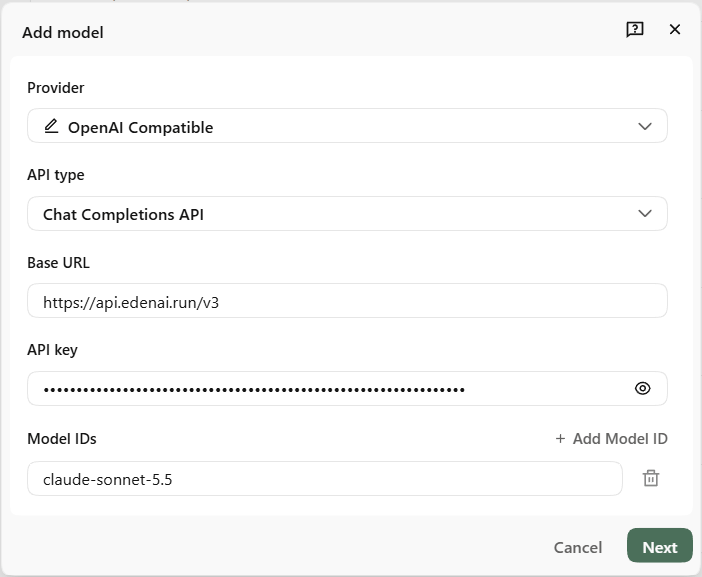
Open Settings (the gear icon, bottom left), go to Models and click Add model.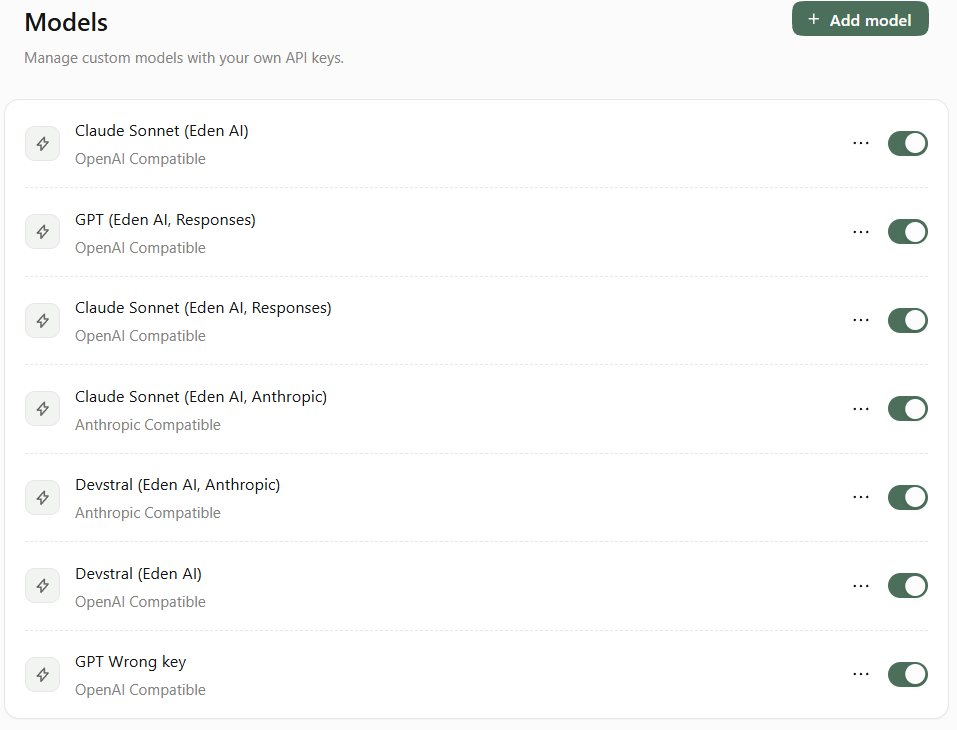
A Model ID is a canonical model name. It names the model only, so Eden AI chooses the provider that serves it, by price, speed or latency, with automatic failover. The full list of canonical names is at
GET https://api.edenai.run/v3/models?view=models (public, no key needed).
Click + Add Model ID to add more models on the same endpoint, then click Next.
2. Configure model capabilities
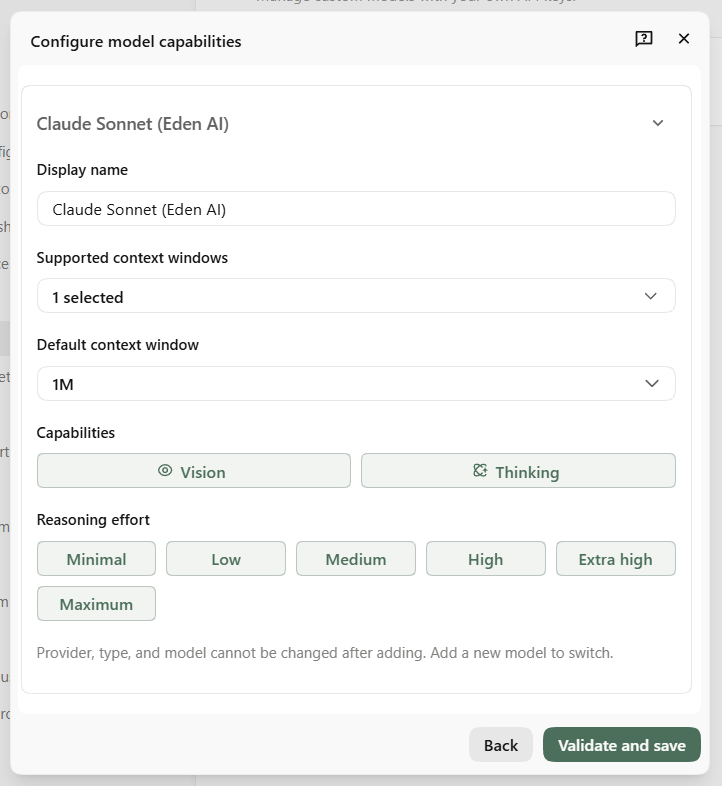
The Configure model capabilities screen describes the model to Qoder:- Display name: the name shown in the model picker.
- Supported context windows and Default context window: use the model’s
context_lengthfromGET https://api.edenai.run/v3/models?view=models(see List Models). - Capabilities: turn on Vision and Thinking when the model supports them.
- Reasoning effort: Minimal, Low, Medium, High, Extra high or Maximum. See Reasoning effort for what Qoder sends for each.
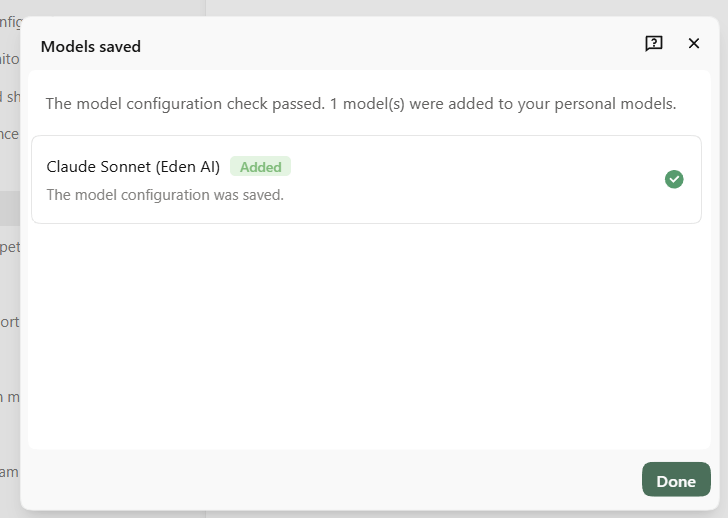
Validate and save does not test the connection. A wrong key is only reported when you send the first message; see Troubleshooting.
3. Pick the model in the chat
Open the model picker at the bottom of the chat and choose the model under Custom. The picker also lets you change the Thinking effort of the selected model.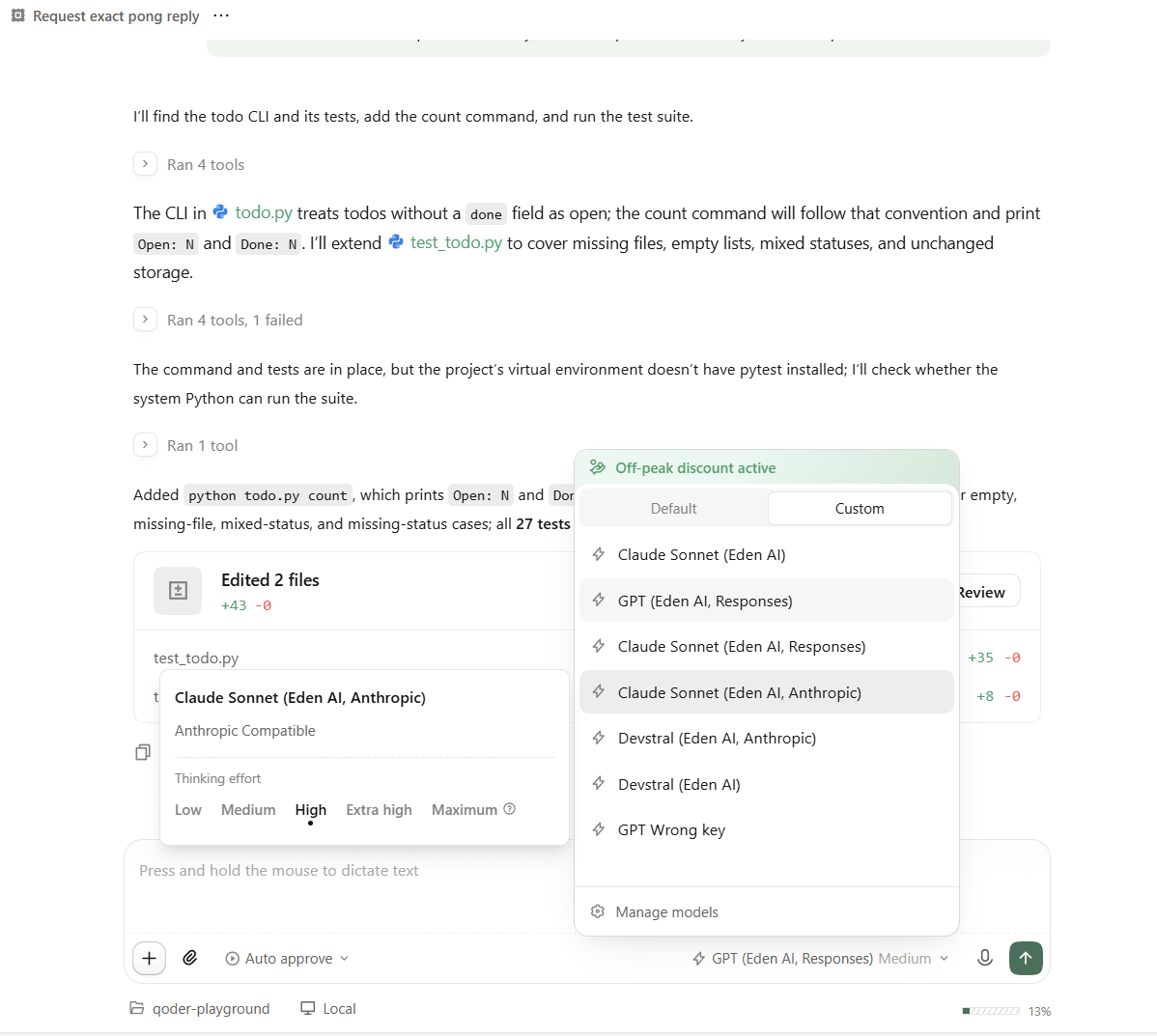
Other API types
Chat Completions API is the recommended API type. The two others work with the same Base URL:- OpenAI Compatible with Responses API: Qoder sends the full conversation history each turn, so no server-side state is needed.
- Anthropic Compatible: Qoder calls
/v1/messagesunder the same Base URL,https://api.edenai.run/v3. Use it for Claude models only: in this mode, a non-Claude model (Devstral) stopped without using its tools, while the same model worked with Chat Completions.
Model naming
Qoder sends the Model ID as you write it, so use a canonical model name as listed byGET https://api.edenai.run/v3/models?view=models, such as claude-sonnet-5.5 or gpt-5.5. Qoder sends tool definitions with every request, so choose a model whose entry has supports_function_calling: true. Claude Sonnet, GPT, Gemini Flash and Devstral were tested end to end with Chat Completions.
List the available models, with their capabilities and pricing, in List Models.
Reasoning effort
The effort chosen in the model settings or the chat picker is sent as the parameter of the API type in use:Switching models
Open the model picker in the chat and choose another model; switching mid-chat works. To add a model, or to change the provider or API type of one, go to Settings > Models > Add model again.Costs
- Prompt caching works without any setup: Qoder sends a session id header per chat, so the agent’s steps reuse 30,000 to 50,000 cached tokens. See Prompt Caching.
- With Auto approve on, Qoder asks the selected model for a short safety check before each tool call. These small requests also go through Eden AI.
Qoder CLI
The CLI uses the same custom models as the desktop app. Qoder’s documentation lists custom models under the Individual plan; this was tested on a Pro trial.Install
On Windows, run in PowerShell:qodercli. If qodercli is not recognized, the binary is in %USERPROFILE%\.qoder\bin\qodercli\: add that folder to your PATH and open a new terminal.
Pick a model
Runqodercli in your project folder, then /model and open the Custom tab. Models added in the desktop app appear automatically under Local endpoints on the same computer.
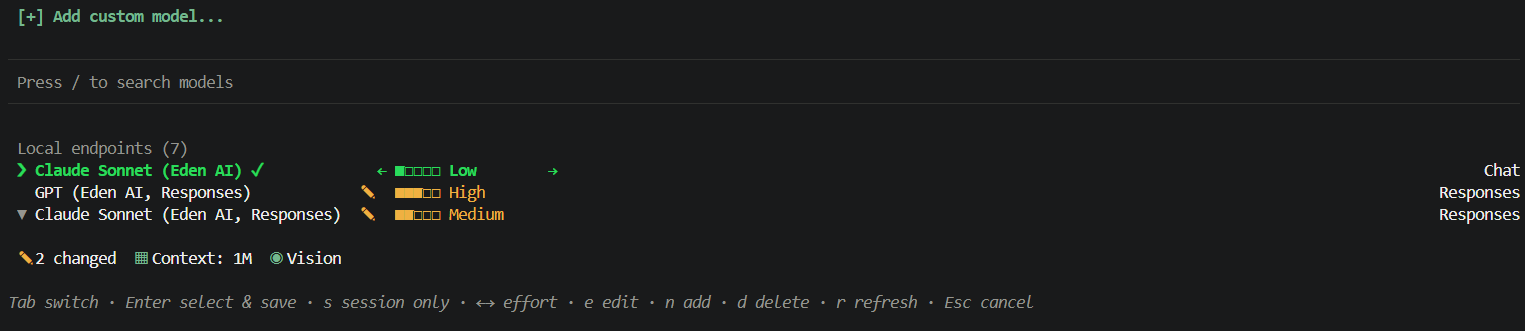
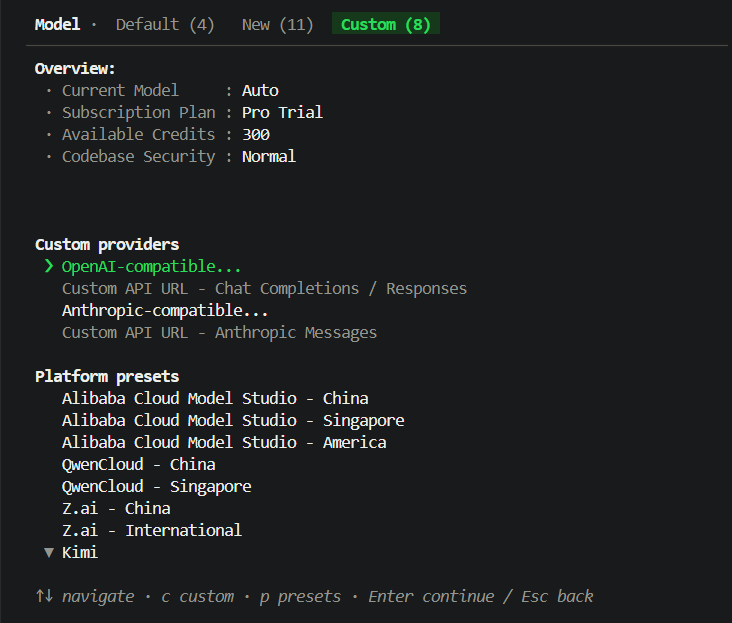
←/→ change the effort, e edits a model, n adds one, d deletes one and s selects it for this session only.
Expert Models as Tools (MCP)
Eden AI also hosts an MCP server that exposes the expert model catalog (OCR, web search, speech, translation and more) as tools. In Qoder, open Extensions in the left sidebar, go to Connectors, click Add Connector and choose Add custom MCP. On the Form tab, fill in:
Click Add MCP.
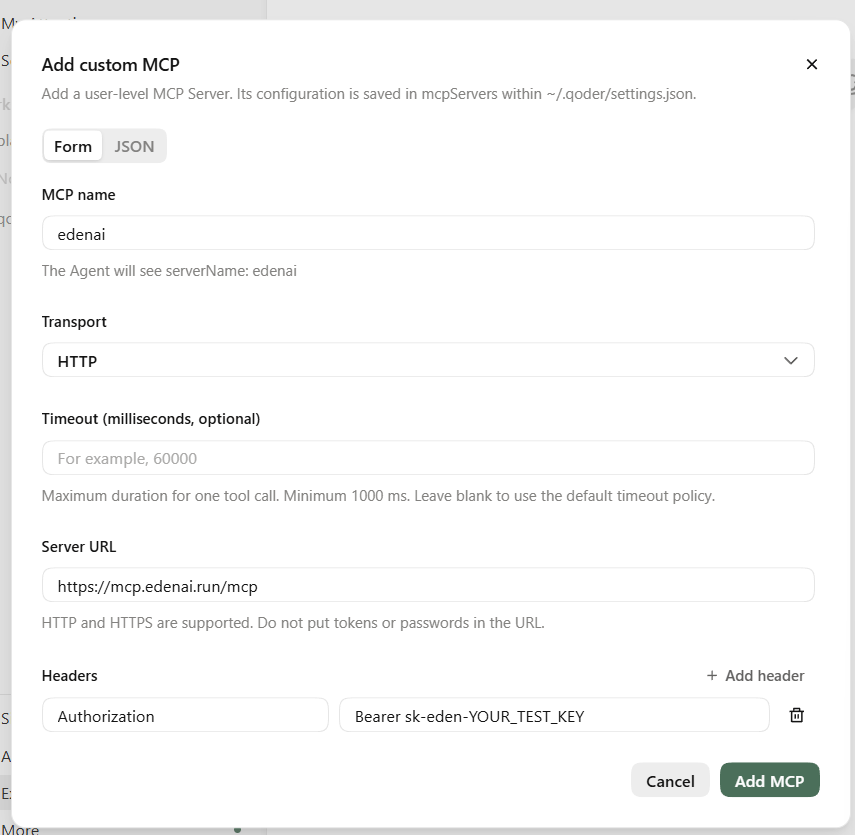
mcpServers in ~/.qoder/settings.json, which the CLI reads too:
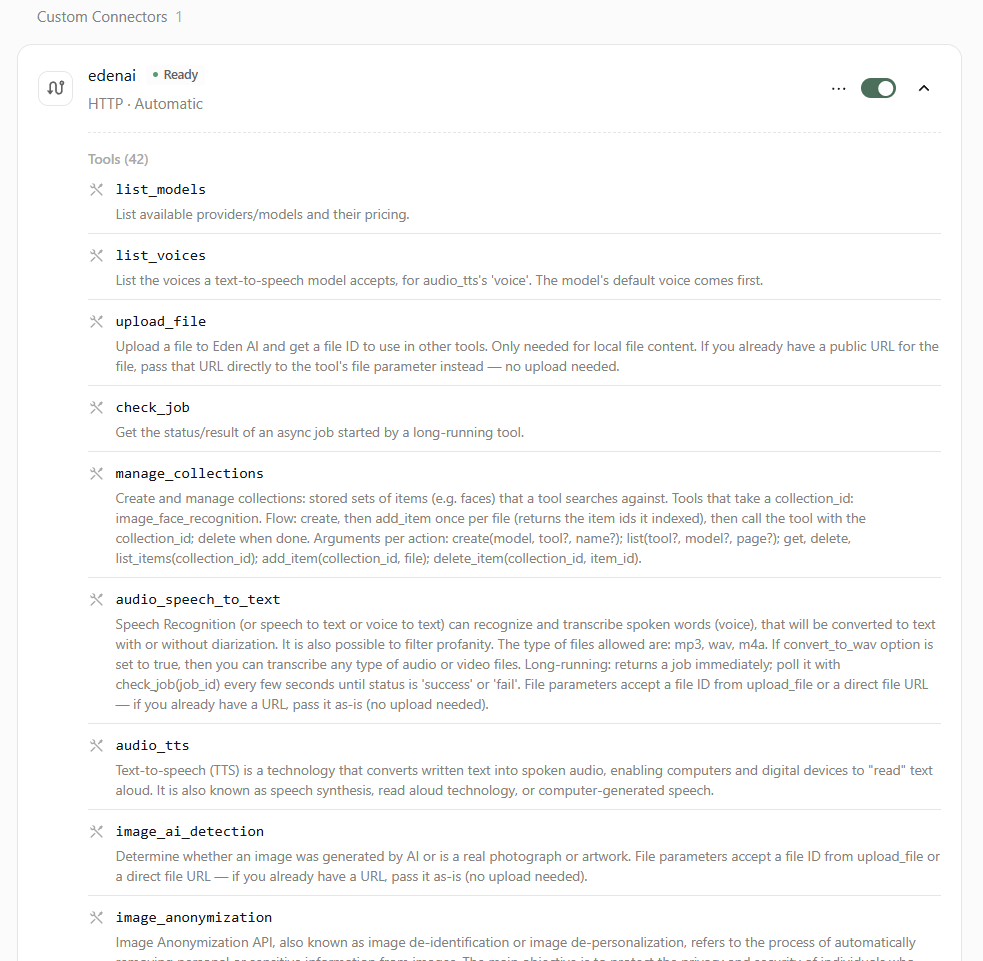
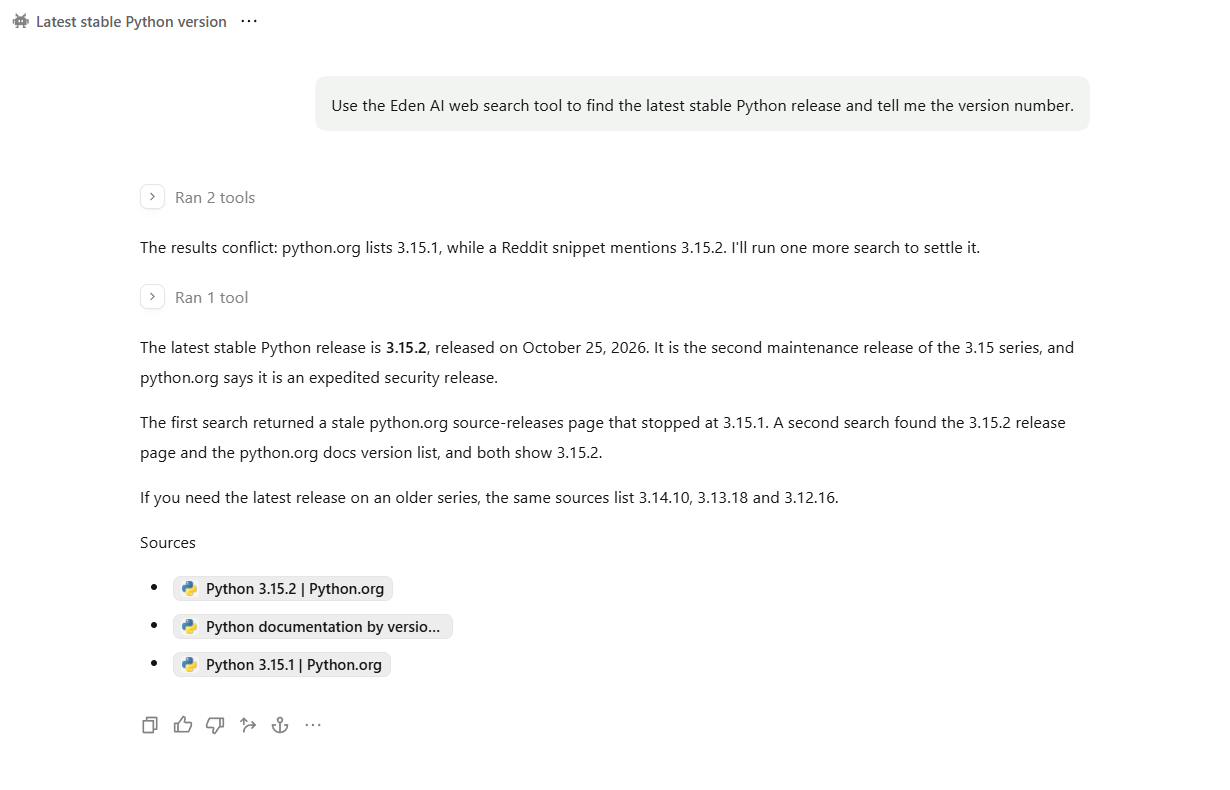
- Files: pass public URLs. Some sites block automated downloads and answer 403. For a local file, upload it through the file upload API first and give the agent the file ID in a code block. Do not ask the agent to upload a large file itself: it has to write the file out as base64 and hits its output limit.
- Billing: each tool call is billed as a normal expert model call and shows in monitoring.
Troubleshooting
Custom model authentication failed
The message reads “Authentication for the custom model failed. Please check whether the API key and related configuration are correct.” The key is wrong or expired: copy it again from app.edenai.run under API Keys, with no leading or trailing spaces, and check the model’s configuration under Settings > Models.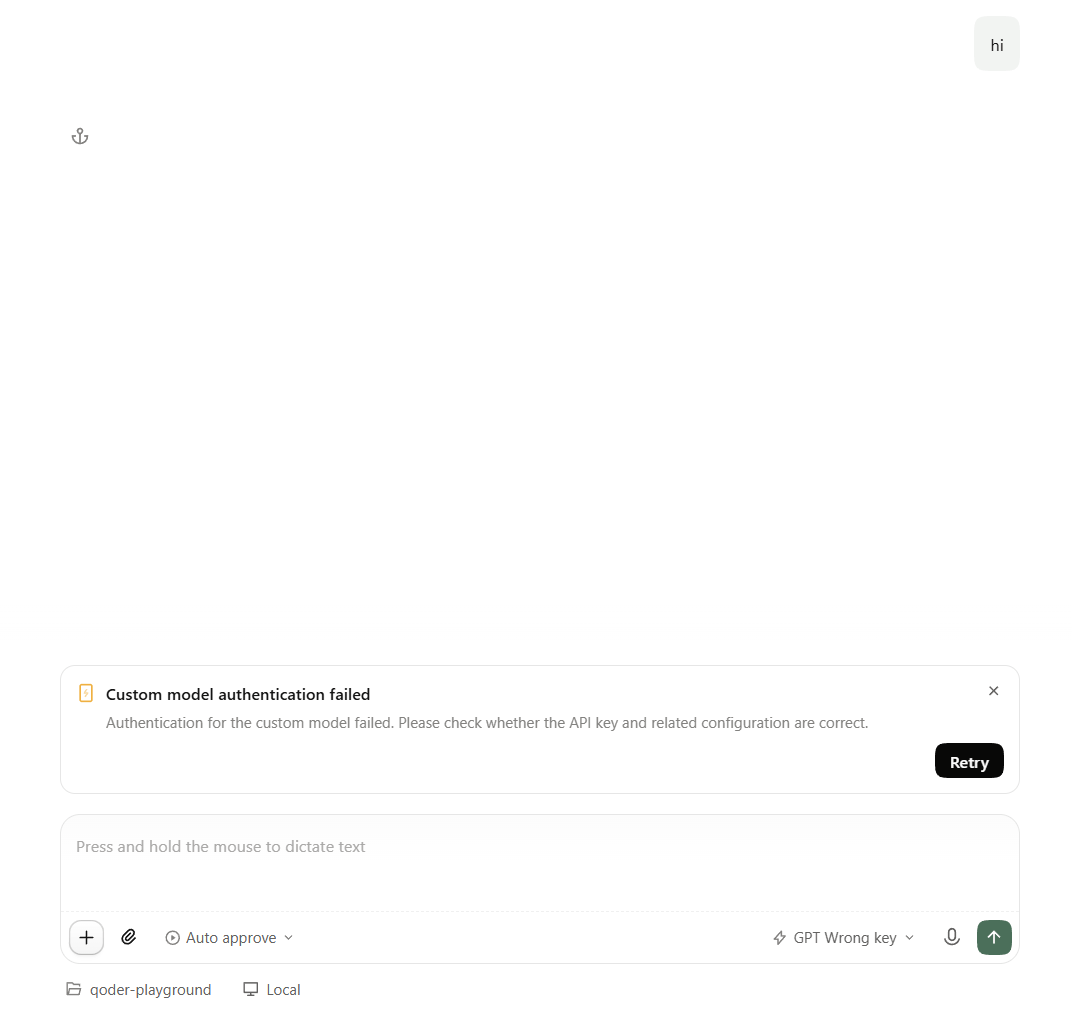
Response incomplete
“Response incomplete. The model reached its output token limit” means the answer did not fit in the model’s output. Narrow the request. It is typical when the agent tries to pass large file content through a tool; see Files above.MCP tool not found
A message ending in “not found” for an MCP tool is transient. Retry; the agent usually recovers on its own.Warning about HTTP addresses
A yellow “HTTP addresses can be used…” warning in the model settings means the Base URL does not start withhttps://. Use https://api.edenai.run/v3.
Next Steps
- Cline: VS Code coding agent on Eden AI
- Claude Code: Anthropic’s official CLI coding agent on Eden AI
- List Models: browse the catalog with capabilities and pricing
- MCP server: the full expert model tool catalog