.jpeg)
Summarize this article with:
- Optical Character Recognition (OCR) is a technology that converts text from images, scanned documents, or PDFs into machine-readable text.
- OCR is widely used to digitize printed documents, automate data entry, and extract information from receipts, invoices, contracts, and other documents.
- Developers can use Optical Character Recognition (OCR) with JavaScript using a REST API that accepts standard inputs and returns structured JSON responses.
- Simplify development with a single API key that provides access to multiple AI services.
- OCR is a powerful tool for automating text extraction from documents and images.
In this tutorial, you will learn how to use the OCR API in 5 minutes using JavaScript. Eden AI provides an easy and developer-friendly API that allows you to extract text from images or scanned documents.
What is the OCR API?

Optical Character Recognition (OCR) is a technology that converts text from images, scanned documents, or PDFs into machine-readable text.
OCR is widely used to digitize printed documents, automate data entry, and extract information from receipts, invoices, contracts, and other documents.
Getting Started with OCR
Set Up Your Eden AI Account
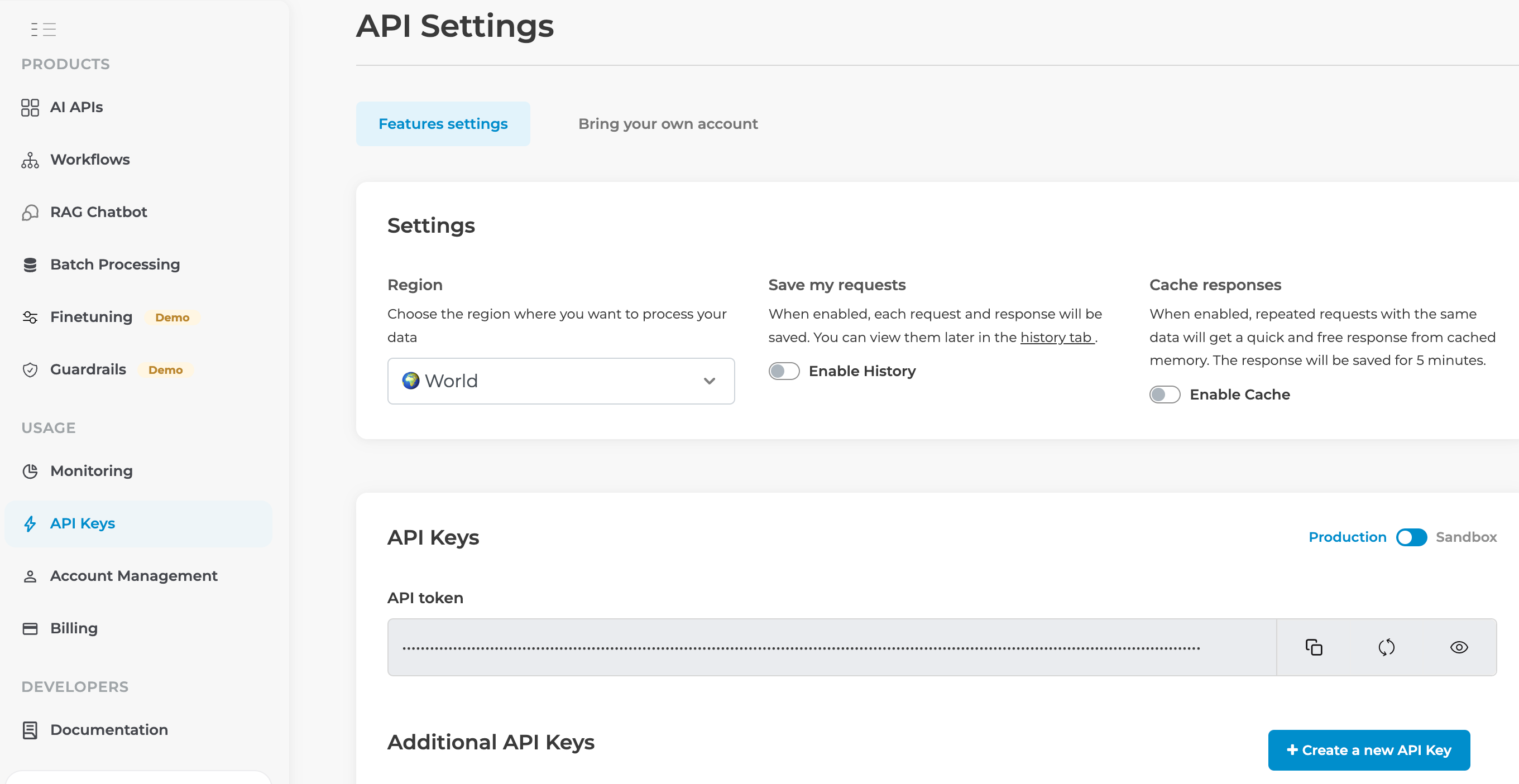
1. Sign Up: If you don't have an Eden AI account, create a free here. Once you do that you can obtain your API key, which you can use to access the OCR API.
2. Access the OCR Feature: Once logged in, go to the document section of the platform.
3. Choose the OCR feature: Select the OCR tool. You can also explore other options based on your specific requirements.
How to Implement OCR API using JavaScript?
Example Output
Why Eden AI is the Best for OCR
Eden AI provides several advantages.

Multiple AI Providers
You can choose between different AI services, helping you compare results for the best performance.
Easy Integration
Simplify development with a single API key that provides access to multiple AI services. Eliminate the hassle of managing separate integrations and accelerate your launch.
Cost Efficiency
Only pay for what you use. No upfront costs, just flexible access to multiple AI services with a single API key.
Conclusion
OCR is a powerful tool for automating text extraction from documents and images. Eden AI's OCR API makes it easy to integrate this capability into JavaScript applications with just a few lines of code.
Sign up for free on Eden AI and start extracting text from documents today!

.jpg)